Free UK Delivery | 30 Days Return Policy

How to Take a Fingerprint for Engraving

After you have taken your print, use the free cleanup tool further down this page to prepare it for engraving. You can then preview how your fingerprint will look on a 3D ring render directly below, adjusting ring width, metal and positioning before you order.

Quick Summary
Ring Engraving Preview
Drag to rotate
0 / 35
Upload fingerprint image
White background, dark ridges work best
Press Calibrate to mark the fingerprint height on the ring with red guide lines. Check positioning, then Confirm.
100%
We try to render your fingerprint at life-like size so you can see how it will look on a finished ring. You can zoom into the preview for a closer look at the ridge detail, and we can engrave to that level of detail on request. Just let us know and we will do our best to accommodate.

Scaling is relative to UK size T (70.2mm circumference). A 0.5mm to 1mm safety margin is kept clear at the top and bottom of the ring so the corners stay smooth and comfortable.
* This is an illustrative preview. The actual engraving on a ring may vary in appearance. Font availability depends on your device. A computer will offer the widest selection of fonts.

Quick guide: Takes 5–10 minutes
You’ll need: Plain white paper, ink pad or pencil, clear tape, phone or camera
Included: Free fingerprint cleanup and preview tool below

Fingerprint engraving uses a real fingerprint to create personal jewellery such as rings, pendants, dog tags, or keepsakes. To achieve a sharp and accurate result, the fingerprint image must show clear ridge detail with strong contrast.

This guide explains how to take a high-quality fingerprint at home for fingerprint engraving using everyday items. Once complete, the free tool at the bottom of this page allows you to clean up the image, preview how it will engrave, adjust spacing, and download a file ready to send to us.


Before You Start

Preparation matters:

Wash and dry your hands. Clean, dry skin produces clearer ridges

Use plain white paper. Avoid glossy, textured, or coloured paper

Work in good lighting. Natural light or bright indoor lighting works well

Apply light pressure. Pressing too hard causes smudging and loss of detail


Method 1: Ink Pad (Recommended)

This method produces the clearest and most reliable fingerprints for fingerprint engraving on rings and other jewellery.

Steps:

Press your finger onto the ink pad and gently roll it side to side to coat the ridges evenly

Press lightly onto plain white paper. Do not push hard

Take several prints using different fingers

Choose the clearest print and allow it to dry fully

Photograph it in good lighting with the camera positioned directly above the paper

Upload the image to the tool below to preview and adjust spacing

Download the final file and email it to us

Why this works:
Ink prints capture strong ridge definition and fine detail. This makes them ideal for fingerprint rings, pendants, and high-contrast engravings on metal.


Method 2: Pencil and Tape

A good alternative if you do not have an ink pad for fingerprint engraving.

Steps:

Shade a small area of white paper with a soft pencil, slightly larger than your fingertip

Rub your finger over the graphite until it is evenly coated

Press clear tape firmly over your fingertip, then lift it carefully

Stick the tape onto plain white paper

Photograph the print without flash or glare

Upload the image to the tool, adjust spacing, download, and email it to us

Why this works:
Pencil graphite transfers cleanly to tape and creates good contrast on white paper when done carefully, which is suitable for fingerprint engraving.


Method 3: Phone Apps (Not Recommended)

Some smartphone apps can capture fingerprints, but results are often poor. Ridge detail may be incomplete or distorted, which limits fingerprint engraving accuracy.

If you use an app, check that the ridges appear sharp, continuous, and evenly lit before uploading the image.


Fingerprint Scars and Natural Marks

Scars, fine lines, and natural marks often appear in fingerprints and can be engraved exactly as they are. These details are part of the print and usually enhance the personal nature of fingerprint engraving.

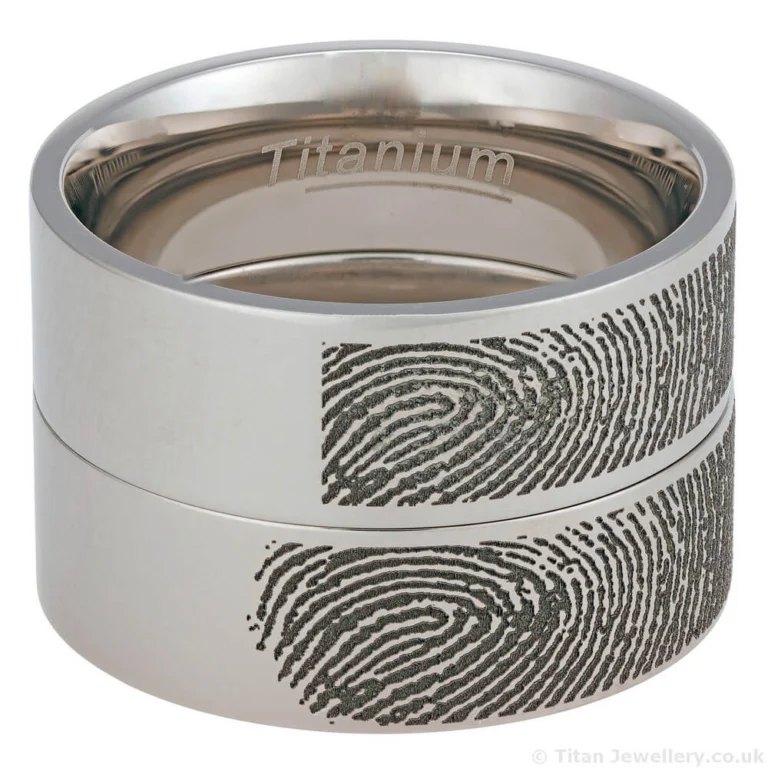
The image shows two fingerprint rings with different engraving styles. The top ring uses a rectangular section with squared ends for a uniform, geometric appearance. The bottom ring preserves the natural oval shape of the fingerprint with tapered ends, resulting in a longer feature since it hasn’t been trimmed. Both styles capture complete ridge detail.

The fingerprint shown belongs to our engraver. View our fingerprint ring collection to see more examples of engraved fingerprint rings in titanium.

Using the Fingerprint Cleanup Tool

Once you have a clear fingerprint image, use the free tool below to prepare it for fingerprint engraving.

The tool allows you to:

Clean up smudges and adjust contrast

Preview how the fingerprint will engrave

Adjust spacing and layout

Download a final file ready for fingerprint engraving

Note: The fingerprint cleanup tool is designed for use on a computer. It can be used on a mobile phone, but adjusting spacing and fine details may be more difficult on a smaller screen.

The tool includes a preset fingerprint so you can test it and get familiar with how it works before uploading your own image. The preset fingerprint belongs to our engraver.

We usually engrave a selected section of the fingerprint rather than the full print. Full fingerprints are often too wide for rings, so choosing a clear or meaningful area gives the best result. You can use the highlight feature in the tool to mark which section you prefer, and our engraver will focus on that area.

The tool processes your fingerprint into a black and white image for fingerprint engraving. Only the black areas will be engraved onto the metal. The white areas remain as unengraved surface. You can adjust the balance using the threshold, brightness, and contrast controls to achieve the result you want.

When you are happy with the result, download the files and email them to engraving@titanjewellery.co.uk with your order number. The tool creates a ZIP file containing everything we need for fingerprint engraving.

Ready to try? Upload your fingerprint below to get started.


Frequently Asked Questions

How long does it take?
Most people get a clear fingerprint in 5–10 minutes. You may need a few attempts.

Can I take a fingerprint from a child or baby?
Yes. It may take several tries. Use the ink pad method with very light pressure. A second person can help hold their hand steady.

I have seen another ring, can that have a fingerprint?
Yes. We currently offer fingerprint engraving on three titanium ring styles, but can engrave other flat ring designs. Flat rings work better for fingerprint engraving. The best metals are titanium, tantalum, and cobalt chrome. Titanium and tantalum engravings appear black, whilst cobalt chrome shows the natural metal colour. We don’t offer fingerprint engraving on other metals at the moment.

What paper should I use?
Plain white printer paper works best. Avoid glossy, textured, or coloured paper.

How do I know if a fingerprint is clear enough?
You should see defined ridge lines with minimal smudging. If the print looks too dark or blurred, try again using lighter pressure.

Can I retake the fingerprint if it goes wrong?
Yes. Take as many prints as you need and upload the clearest one.

Can you engrave a full fingerprint instead of a selected section?
Yes. Full fingerprints can be engraved on our titanium dog tags. Rings require a selected section due to their width. If you are unsure whether your ring is wide enough for your preferred fingerprint style, contact us.

Is the fingerprint tool free to use?
Yes. Anyone can use the tool to clean up and preview their fingerprint, whether or not they order engraving from us.

What can I engrave a fingerprint onto?
Most flat metal items work well for fingerprint engraving. Contact us if you are unsure whether your item is suitable.

Is my fingerprint data private?
Yes. The tool runs entirely in your browser. We only receive your fingerprint when you email it to us. All files are deleted 30–60 days after completion. We never share customer fingerprints in marketing without explicit permission.

What files does the tool create?
The tool generates a ZIP file containing your original fingerprint, a processed version optimised for fingerprint engraving in both PNG and SVG formats, a highlighted version if you selected an area of interest, and a README file with submission instructions.


UK Based Stock

We dispatch directly from our Kent Location.

Fast Dispatch

Stock orders placed by 1pm usually sent same working day

Easy Returns

30 day no quibble refund or exchange policy

Expert Support

Speak to our Goldsmith with over 35 years jewellery experience